
Failure
The services fail during startup and do not respond within the timeout period set by Windows. This situation may prevent the services from running correctly, affecting communication between the system and the monitored printers.
Cause
The failure is related to a timeout during the startup of Windows services. There may also be permissions restrictions on the files required for execution or improper configurations for the startup type of the DCA and Cloud Connector services.
Solution
-
Review the Windows logs
-
Press Windows + R
-
Enter eventvwr.msc
-
Press Enter
-
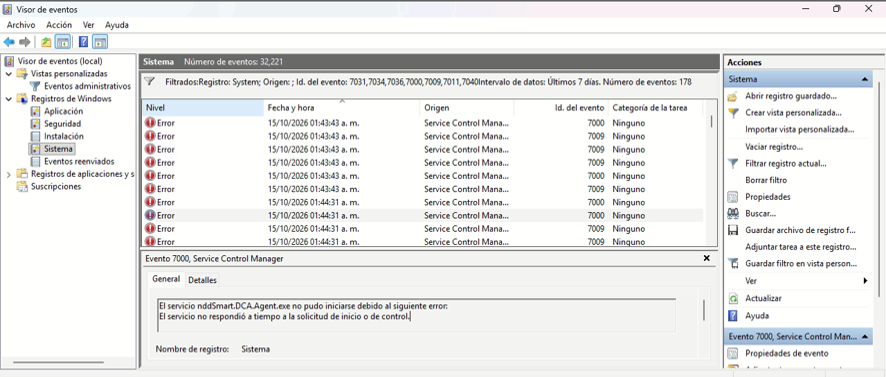
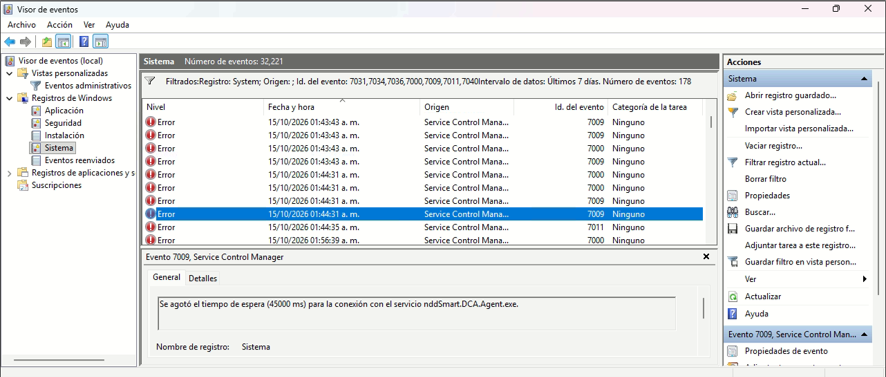
Access Windows Logs > System
-
Locate the events logged during the period when the failure occurred
-
Check for messages related to service startup, timeout, or unexpected shutdowns
-
Example
-
Check the ServicesPipeTimeout parameter in the Windows Registry
-
Press Windows + R
-
Enter regedit
-
Press Enter
-
Navigate to the path HKEY_LOCAL_MACHINE\SYSTEM\CurrentControlSet\Control
-
In the right panel, locate the ServicesPipeTimeout setting
-
Before making any changes, back up the Control key:
-
Right-click the Control key
-
Select Export
-
Choose a location and save the backup file
-
-
-
Create or adjust the ServicesPipeTimeout parameter
-
If the parameter does not exist:
-
Right-click in an empty area of the right-hand panel
-
Select New > DWORD Value (32-bit)
-
Name the parameter ServicesPipeTimeout
-
Double-click the newly created parameter
-
Select the Decimal base and enter the value 120000
-
Click OK
-
Close the Registry Editor
-
Restart the computer to apply the change
-
-
If the parameter already exists:
-
Double-click ServicesPipeTimeout
-
Check the current value using the Decimal base:
-
If the value is less than 120000 and you need to increase the timeout, change it to 120000
-
If it is already set to 120000, there is no need to change it
-
If the value is greater than 120000, evaluate the existing configuration before making any changes
-
-
If the value is changed:
-
Click OK
-
Close the Registry Editor
-
Restart the computer to apply the change
-
-
-
Note
The value 120000 corresponds to 120 seconds (2 minutes).
Information
Official Microsoft documentation: https://learn.microsoft.com/en-us/troubleshoot/windows-server/system-management-components/service-not-start-events-7000-7011-time-out-error.
-
Review the permissions for the installer directory
Verify that the users responsible for running the services have the necessary permissions to access the installer files and components:
-
-
Navigate to the folder where the system installation files are stored
-
Right-click the folder and select Properties
-
Go to the Security tab and select each listed user or group
-
Check the permissions granted, especially reading, writing, and executing permissions, as required by the system
-
Verify that the user account used by the service or the account responsible for running it has the necessary permissions
To identify the account used, open services.msc, locate the corresponding service, right-click it, select Properties, and go to the Logon tab. -
If any restrictions are identified, click Edit on the Security tab and adjust the necessary permissions for the corresponding account or group
Grant total control only when there is a justified need and authorization, avoiding excessive permissions -
After making the adjustments, try starting the service and verify that it remains running
-
Also check the Windows logs to identify any errors related to accessing files or components
-
Warning
Avoid granting total control indiscriminately to all users. Permissions should be adjusted according to the account used by the service and the environment’s security policies.