Learn how to set different levels of permissions for individual users or groups, restricting or granting access to certain system features and functionalities.
Permission levels
Permission levels determine what actions users can perform, what resources they can access and to what extent they can view or administer the system.
No permissions
Without any assigned permissions, the user will have access to view the devices available within their scope in the Devices > Inventory menu.
All specific permissions also grant this access.
Admin
This is the highest level of permission and grants full access and control over all features and functionality. Administrators have extended privileges and are responsible for managing and configuring the system, as well as performing maintenance and administration tasks.
The administrator permission level should be assigned with care, as it grants access to critical and confidential system resources.
Administration
This permission level grants full access to all views and actions related to customers, sites, units, groupings, users, administration of unmanaged devices, dashboards, reports and alerts.
Clients
View the client grid
-
View customers in the Administration > Customers menu grid
-
Open the customers' properties and view the Info tab
Client management
Note
Grant the View the client grid permission together.
-
Create or edit customers
Department management
Note
Grant the View the client grid permission together.
-
View the departments in the grid when opening a customer in the Administration > Customers menu
-
Create or delete customer departments
Sites
View site grid
Note
Grant the View the client grid permission together.
-
View the sites in the grid when opening a customer in the Administration > Customers menu
-
Open the properties of the sites and view the tabs Info and Devices
Site management
Note
Grant the View the client grid and View site grid permissions together.
-
Create, edit or delete sites
-
Set sites as default
-
Add devices to the site
-
Assign department to site devices
Units
View unit grid
-
View the units and subunits in the Administration > Units menu grid
-
Open the properties of units and subunits and view the Info, Assignment Rules, Users and Devices tabs
Unit management
Note
Grant the View unit grid permission together.
-
Create, edit or delete units and subunits
Users
User management
-
View users in the Administration > Users menu grid
-
Open the user properties and view the Info, Permissions and Units tabs
-
Create, edit or delete users
Permission group management
-
View the permission groups in the Administration > Permission Groups menu grid
-
Open the properties of the permission groups and view the Info, Permissions and Users tabs
-
Create, edit or delete permission groups
Administer unmanaged devices
-
View unmanaged devices in the Devices > Unmanaged menu grid
-
Go back to managing devices in the Devices > Unmanaged menu
-
Stop managing devices in the Devices > Inventory menu
-
Open device properties
New devices
View new devices
-
View the new devices grid in the Devices > New devices menu grid
-
Open the properties of new devices and view the Info tab
Manage new devices
Note
Grant the View new devices permission together.
-
Classify new devices as managed or unmanaged in the Devices > New devices menu
Dashboard
View Alert indicators
-
View, create, duplicate and edit the dashboards with indicators related to the Warnings category:
-
Alerts by criticality
-
View Printer indicators - Monitoring
-
View, create, duplicate and edit the dashboards with indicators related to the Printers - Monitoring category:
-
Monitoring - Online and offline
-
Monitoring - Online and offline by customer
-
Printer monitoring
-
Printer monitoring by customer
-
Total Printers - Monitored
-
Total printers - Online
-
View Thermal Printer indicators - Monitoring
-
View, create, duplicate and edit the dashboards with indicators related to the Thermal Printers - Monitoring category:
-
Thermal Printers - Online and Offline
-
Thermal Printers - Online and Offline by customer
-
View Printer indicators - Production
-
View, create, duplicate and edit the dashboards with indicators related to the Printers - Production category:
-
Average pages per printer
-
Daily production - last 30 days
-
Environmental impact
-
Printed pages
-
Prints by organization
-
View Printer indicators - Supplies
-
View, create, duplicate and edit the dashboards with indicators related to the Printers - Supplies category:
-
Demand planning
-
Premature exchanges
-
Supplies running low
-
View inventory indicators
-
View, create, duplicate and edit the dashboards with indicators related to the Inventory category:
-
Customers
-
Total printers
-
View Computers indicators - Monitoring
-
View, create, duplicate and edit the dashboards with indicators related to the Computers - Monitoring category
-
Computers - Active and inactive
-
Computers - CPU usage
-
Computers - Memory usage
-
Computers - Disk usage
-
Active and inactive computers by customer
-
Usage indicators by customer
-
Business Intelligence
-
View the indicators available in the Business Intelligence menu
Warning
Viewing is conditional on licensing the functionality; without this license, even with the permission activated, it will not be possible to access the menu.
Segregation by units is not applied in this functionality. Therefore, users will view the indicators based on the data of all customers in the portal.
Reports
Customized
-
View, filter and generate the custom reports created by other users in public mode in the Reports > Custom menu grid
Predefined
-
View, filter and generate predefined reports from the Reports > Predefined menu
Manage
Note
Grant the Customized permission together.
-
Create, edit or delete the custom reports from the Reports > Custom menu
Export
Note
Grant the Predefined and/or Customized permissions together.
-
Export the reports generated in the Reports > Predefined and/or Reports > Custom menus
Scheduling
Information
When this permission is selected, the Predefined and Customized permissions will be checked automatically.
-
View, create, edit or delete schedules from the Reports > Scheduling menu
Alerts
Viewing alert rules
-
View the alert rules in the Settings > Alert rules menu grid
-
Open the properties of the alert rules and view the Registration and Notifications tabs
Manage alert rules
Note
Grant the Viewing alert rules permission together.
-
Create, edit or delete alert rules
View alerts
-
View alerts in the Warnings > Open, Warnings > Processing and Warnings > Closed menus grids
-
View alerts in the Warnings tab of a device's properties in the Monitoring > Printers menu
-
Open the alert properties and view the Info and History tabs
-
View the Warnings column in the Monitoring > Printers menu grid
-
View the Active alerts indicator on the Summary tab of a device's properties in the Monitoring > Printers menu
Manage alerts
Handle alerts
Information
When this permission is selected, the View alerts permission will be checked automatically.
-
Send alerts for process in the Warnings > Open menu or in a device's properties in the Monitoring > Printers menu
Forward alerts
Information
When this permission is selected, the View alerts permission will be checked automatically.
-
Forward alerts by e-mail in the Warnings > Open and Warnings > Processing menus, or in a device's properties in the Monitoring > Printers menu
Close alerts
Information
When this permission is selected, the View alerts permission will be checked automatically.
-
Close alerts in the Warnings > Processing menu
Computers
This permission level grants full access to all views and actions related to computers.
View computer grid
-
View the computers in the Monitoring > Computers > Devices menu grid
-
Open the computer properties and view the Summary, Info, Performance, and Moves tabs
Disable management
Note
Grant the View computer grid permission together.
-
Stop managing computers in the Monitoring > Computers > Devices menu
Edit computers
Note
Grant the View computer grid permission together.
-
Edit the computer register
View computer locations
Note
Grant the View computer grid permission together.
-
View the computer's location on the Summary tab of the computer's properties
-
Open the Location tab of the computer's properties
Software
This permission level grants full access to all views and actions related to computer software.
View software
-
View the software in the Monitoring > Computers > Softwares menu grid
-
Open the software properties and view the Info, Licenses and Computers tabs
Edit software
Note
Grant the View software permission together.
-
Edit the register of software
-
Create the software manually
Installations
This permission level grants full access to all views and actions related to remote installation management.
View Module and Service grids
-
View the modules and services in the Installations > Modules and Installations > Services menus grids
-
Open the module properties and view the Details, Services and Logs tabs
-
Open the service properties and view the Details, Printers and Logs tabs
-
Open the properties of the module services in the Services tab
-
Refresh the service and module logs
-
Export the service and module logs
Installation management
Note
Grant the View the Modules and Services grids permission together.
-
Edit the service settings
-
Configure the service logs
Service status
Service status grid view
-
View the Installations > Automatic updates > Service status menu
Updating services
Note
Grant the Service status grid view permission together.
-
Press the Update button to automatically update the desired services
Services download
Note
Grant the Service status grid view permission together.
-
Press the Download button to download the update file for the desired service
Update rules
Update rules grid view
-
View the Installations > Automatic updates > Update rules menu
Update rules management
Note
Grant the Update rules grid view permission together.
-
Create, edit or delete update rules
Managing service rules
-
View the Installations > Enable services menu
-
Configure the service rules
Enable or disable general service rule
-
View the Installations > Enable services menu
-
Edit services to enable or disable them
Installers
Generate installer
-
Generate installers in the menu Installations > Installers > Generate installer
Printers
This permission level grants full access to all views and actions related to printers, supplies, meters and product compatibility.
Create printers
Note
Grant the View printers permission together.
-
Create the printers manually in the Monitoring > Printers menu and in the Printers tab of a service's properties in the Installations > Services menu
View printers
-
View the printers in the Monitoring > Printers menu grid
-
Open the printer properties and view the Summary, Info, Meters, Supplies, Services and Moves tabs
-
Open the properties of the supplies in use and exchanged and view the Summary and Readings tabs
Edit Printers
Note
Grant the View printers permission together.
-
Edit the printer register
Disable management
Note
Grant the View printers permission together.
-
Stop managing printers in the Monitoring > Printers menu
Enable or disable monitoring
Note
Grant the View printers permission together.
-
Stop monitoring or return to monitoring printers
Printer settings management
-
Manage all settings in the Settings > Monitoring menu
Enable or disable replenishment service
Note
Grant the View printers permission together.
-
Activate or deactivate the replacement service when opening a printer in the Monitoring > Printers menu
Supplies
Warning management
-
View the alerts in the Supplies > Supplies running low and Supplies > Premature exchanges menus grids
-
Open the properties of the supplies running low alerts and view the Summary, Historic and Readings tabs
-
Open the properties of the premature change alerts and view the Summary and Readings tabs
-
Request supply demands
-
Finish premature exchanges
Supply settings management
-
Manage all settings relating to supplies from the Settings > Supplies menu
Demand planning
-
View the demands in the Supplies > Demand planning and Supplies > Completed demands menus grids
-
Open the demand properties and view the Info and Historic tabs
-
Change product, change status, finish or refuse supply demands
-
Register customized demand statuses in the Settings > Supplies menu
Supplies in use
-
View all supplies in use in the Supplies > Supplies in use menu grid
Administration of product settings
-
Activate or deactivate the automatic registration of products and compatibilities in the Settings > Supplies menu
Administration of batch rules for requests
Note
Grant the Demand planning permission togethe
-
View, create, or delete grouping rules in the Supplies > Demand planning menu
Generate purchase forecast
-
Generate supply forecast in the menu Supplies > Forecasts > Forecast for purchase
Meters
Insert meters
Note
Grant the View printers permission together.
-
Add meters manually when opening a printer in the Monitoring > Printers menu
Meter settings management
-
View the meters in the Settings > Meters menu grid
-
Open the properties of the meters and view the Info and Rules tabs
-
Create, edit, delete, disable and enable meters
-
Create, edit or delete meter rules
Compatibility
Compatibility administration
Note
Grant the View compatibility permission together.
-
Add or remove compatible and standard products from printers
View compatibility
-
View the compatibilities in the Supplies > Products > Compatibilities menu grid
-
See printer compatibility and view the Compatible products and Standard products tabs
Stocks
This permission level grants full access to all views and actions related to products and stock.
View stocks
-
View delivery locations in the grid under the Supplies > Delivery locations menu
-
Open the delivery location properties and view the Inventory, Info, Devices, and Safety rules tabs
Stock management
Note
Grant the View stocks permission together.
-
Create, edit, and delete delivery locations
-
Add or remove products from the inventory of delivery locations
-
Add devices to delivery locations
-
Create or delete safety rules for delivery locations
Generate scheduled replenishment
-
Generate scheduled supply replenishments in the Supplies > Forecasts > Scheduled replenishment menu
Products
Product management
Note
Grant the View products permission together.
-
Create, edit, delete and import products
View products
-
View the products in the Supplies > Products > Inventory menu grid
-
Open the product properties and view the Info tab
Print queues
This permission level grants full access to all views and actions related to drivers, print queues and print queue users.
Drivers
Driver administration
Information
When this permission is selected, the View drivers grid permission will be checked automatically.
-
Create, edit or delete drivers
View drivers grid
-
View the drivers in the Print queues > Drivers menu grid
-
Open the driver properties and view the Info and Print queues tabs
Information
The Print queues tab within the driver properties will only appear if the user has View print queues grid permission.
Print queues
Print queue management
Information
When this permission is selected, the View drivers grid, View print queues grid, View user grid, View groupings grid and Administration of SNMP settings permissions will be checked automatically.
-
Create, edit or delete print queues
-
Changing the print queue drivers
-
Importing print queues
-
Force deletion of computers from the queue in the Installation status tab
-
Create or delete print queue removal rules in the Settings > Print queues menu
View print queues grid
-
View the print queues in the Print queues > Print queues menu grid
-
Open print queue properties
-
View the Info and Installation status tabs
-
View the printers in the Print queues > Printers menu grid
Queue installation management
Information
When this permission is selected, the View print queues grid, View user grid and View groupings grid permissions will be checked automatically.
-
Add or delete computers and groupings
Users
User management
Information
When this permission is selected, the View user grid permission will be checked automatically.
-
Create, edit or delete print queue users
View user grid
-
View users in the Print queues > Users menu grid
-
Open the user properties
-
View the Info and Print queues tabs
Groupings
Group Administration
Note
Grant the View groupings grid permission together.
-
Create, edit or delete groupings
View groupings grid
-
View the groupings in the Print queues > Groupings menu grid
-
Open the properties of the groupings and view the tabs Info, Members and Print queues
-
View the Groupings tab in the properties of the print queue users in the Print queues > Users menu
Thermal printers
This permission level grants full access to all views and actions related to thermal printers and odometers.
View thermal printers
-
View the thermal printers in the Monitoring > Thermal printers menu grid
-
Open the thermal printers' properties and view the Summary, Info, Odometer and Moves tabs
Disable management
Note
Grant the View thermal printers permission together.
-
Stop managing thermal printers in the Monitoring > Thermal printers menu
Edit thermal printers
Note
Grant the View thermal printers permission together.
-
Edit the register of thermal printers
Odometers
Insert odometers
Note
Grant the View thermal printers permission together.
-
Add odometers manually by opening a thermal printer in the Monitoring > Thermal printers menu
EcoPrint
This permission level grants full access to all views and actions related to EcoPrint.
EcoPrint
Rule administration
Information
When this permission is selected, the View rules grid and Administration of SNMP settings permissions will be checked automatically.
-
Create, edit or delete savings rules in the EcoPrint > Rules menu
View rules grid
-
View the savings rules in the EcoPrint > Rules menu grid
-
Open the rule properties and view the Info and Members tabs
Settings
This permission level will have access to specific settings.
SNMP protocol
Administration of SNMP settings
-
View the SNMP protocol settings in the Settings > SNMP protocol menu grid
-
Create or delete SNMP protocol settings in the Settings > SNMP protocol menu
How do I manage permissions?
You can manage permissions in four ways:
-
When creating the user
-
When editing the user
-
When creating a permission group
-
When editing a permission group
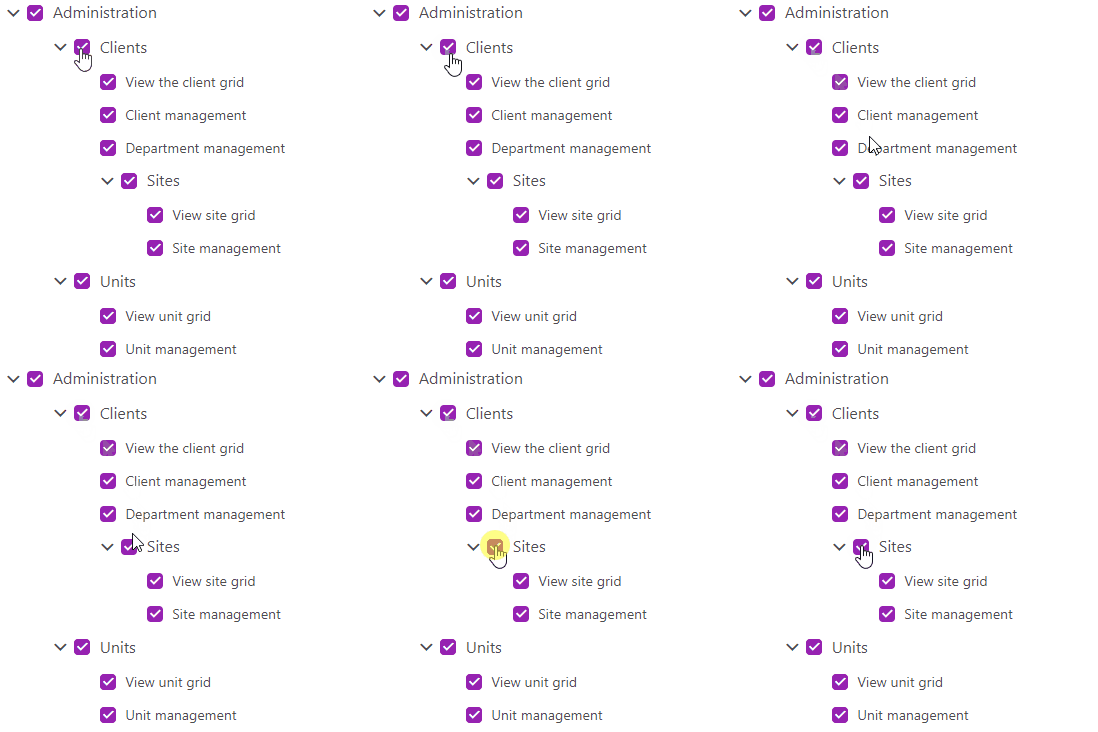
Permissions follow a hierarchical structure; in other words, when you select a higher level, the related permissions are automatically selected.